Auto clock-on and clock-off
Can automatically start and stop a job timer when a worker arrives at or leaves an assigned job site.
Use automatic clock events where assigned job sites and GPS arrival/leave behavior are suitable for the business's time-recording process.
Before you start
Availability: Crew plan and above. Enabled business features, role permissions, connected providers and supported devices may add requirements.
Documented roles: Owner, Office. A role name alone does not override the permissions set by your business.
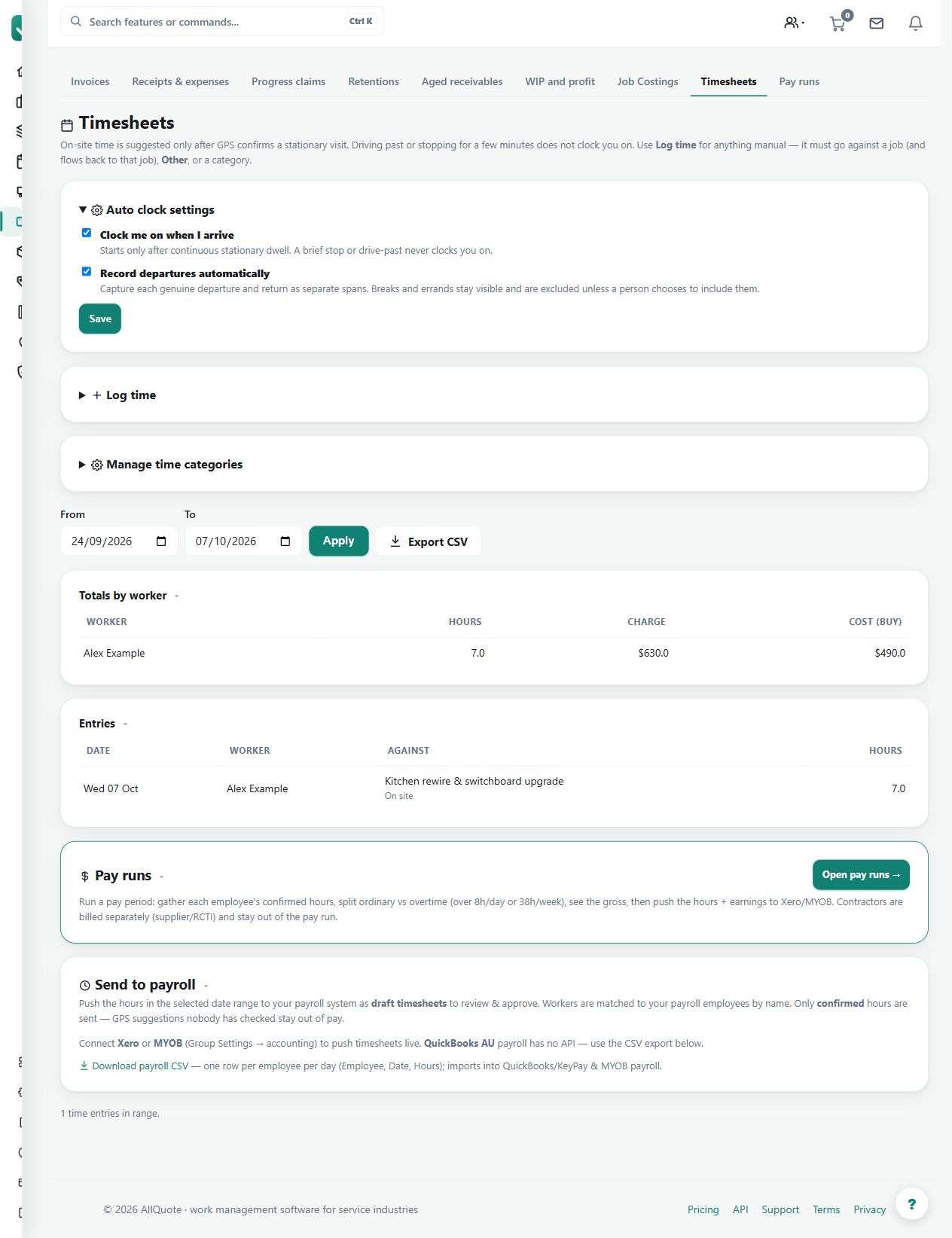
Where to find it: Timesheets > Auto clock settings.
Keep job addresses and geofences accurate, and check worker location permissions and relevant settings.
Step by step
- Open Timesheets at /timesheets.
- Review the auto-clock settings for GPS arrival and leave events.
- Make sure jobs have a usable site address/geofence before relying on automatic clock-on or clock-off.
- Confirm or fix any generated timesheet entries before approving time for payroll or job billing.
Worked example
A worker arrives at an assigned site and a timer starts. Review the generated entry afterward, especially if the worker visited a nearby site or lost location signal.
This is an illustrative scenario. Use your own approved scope, quantities, rates and business rules.
Check the result
Compare clocked time, job assignment and breaks with the work record before approving the entry.
Limits and troubleshooting
Automatic timing can require correction. A timer event is not a final payroll decision or proof that all elapsed time should be billed to the customer.
Check current plans and feature availability · Browse every guide