Team members and charge-out rates
Manages login members, charge-out staff, trades, rates, invitations, leave, and worker details.
Use team settings to keep login access, worker trades, charge-out rates, cost rates and availability aligned with actual responsibilities.
Before you start
Availability: Starter plan and above. Enabled business features, role permissions, connected providers and supported devices may add requirements.
Documented roles: Owner, Office. A role name alone does not override the permissions set by your business.
Where to find it: Settings > Business Settings > Team.
Distinguish people who need a login from charge-out staff records. Confirm the appropriate role, current rates and working availability.
Step by step
- Open Business settings > Team at /group-settings?tab=team.
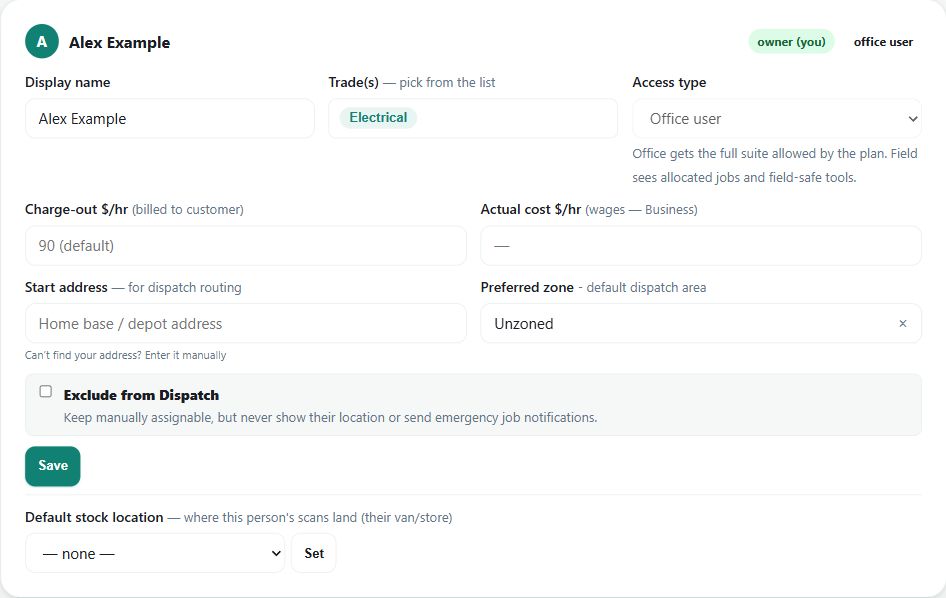
- Invite login users, add charge-out staff, and keep worker names/contact details current.
- Set each person's trade(s), role, charge-out rate, and actual cost rate where margin reporting needs it.
- Maintain leave and availability so quotes, dispatch, and timesheets use the right people.
Worked example
Add a technician with the correct trade, charge-out and cost rates, then review how they appear in quoting, dispatch and timesheet workflows.
This is an illustrative scenario. Use your own approved scope, quantities, rates and business rules.
Check the result
Check invitations and access separately from rate setup. Verify the rate used for costing or billing before relying on a job margin.
Limits and troubleshooting
A charge-out rate is not necessarily the worker's pay rate. Role access, plan allowances and payroll configuration are separate concerns.
Check current plans and feature availability · Browse every guide