Opt-in compliance gating rules
Safety paperwork is not a hard block by default. Required fields and checks apply only when the business adds the form, checklist, certificate, or SWMS it wants to use.
Use optional safety requirements to match the job workflow to the forms and checks the business actually adopts.
Before you start
Availability: Enterprise plan and above. Enabled business features, role permissions, connected providers and supported devices may add requirements.
Documented roles: Owner, Office. A role name alone does not override the permissions set by your business.
Where to find it: Work > Compliance Hub > Gating rules.
Enable the appropriate safety area, define the intended templates and checks, and confirm the available enforcement settings.
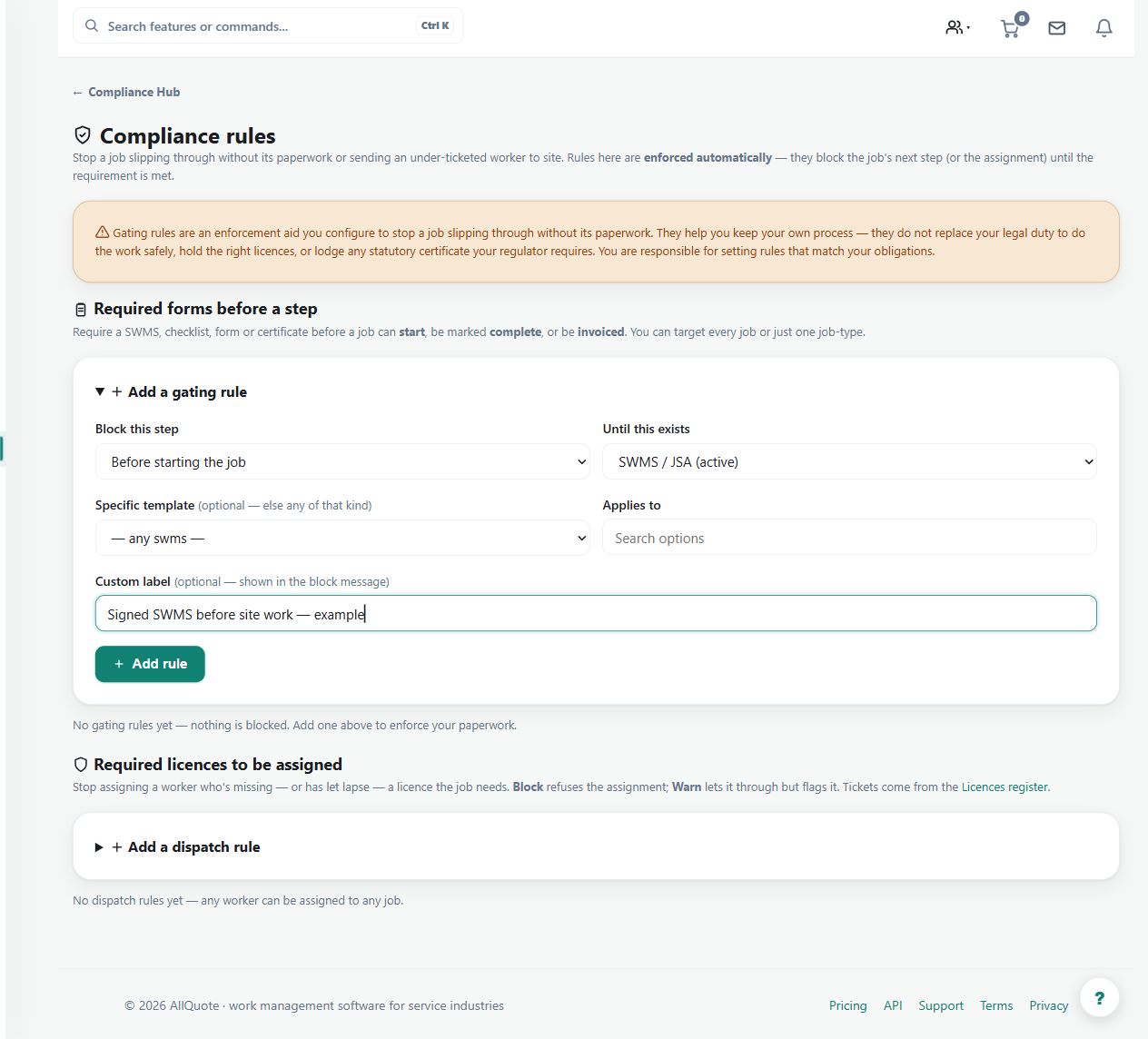
Step by step
- Open Business settings > Features and turn on the safety area if it is hidden.
- Open Compliance Hub at /safety.
- Create the templates and required checks the business actually wants to enforce.
- Attach those templates/rules to jobs; if no rule or template is added, the job flow is not blocked by safety paperwork.
Worked example
Add a required checklist to a job where that checklist is part of the operating procedure. Inspect the resulting job prompt before rolling the requirement out more widely.
This is an illustrative scenario. Use your own approved scope, quantities, rates and business rules.
Check the result
Check which rule is active, where it applies, and whether the displayed outcome is a warning or a block.
Limits and troubleshooting
Safety paperwork is not a universal hard block by default. Do not assume an absent template or unconfigured rule is being enforced merely because the safety module exists.
Follow the screenshot tutorial: Manage licences and compliance
Check current plans and feature availability · Browse every guide